You’ve installed a caching plugin, optimized a few images, maybe even upgraded your hosting — and your site is still slow. Sound familiar? Here’s the thing: WordPress performance isn’t about one silver bullet. It’s about a stack of small mistakes that compound into a serious problem. Each one shaves off a few hundred milliseconds, adds a few extra requests, or bloats your page by another 200KB. Individually, they seem minor. Together, they’re why your site takes five seconds to load instead of two.
After auditing hundreds of WordPress sites, we see the same 15 mistakes over and over. This guide walks through each one — what it is, why it matters, and exactly how to fix it. Some are five-minute fixes. Others need a bit more expertise. But all of them are fixable.
New to Performance Metrics?
Before diving into these mistakes, it helps to understand what Google actually measures. Read our Core Web Vitals guide first for the full picture of LCP, INP, and CLS — the three metrics that directly impact your search rankings.
The Hosting & Server Layer
Your server is the foundation. No amount of front-end optimization can overcome a slow server response. These three mistakes happen before your site’s HTML even reaches the browser.
Mistake 1: Running an Outdated PHP Version
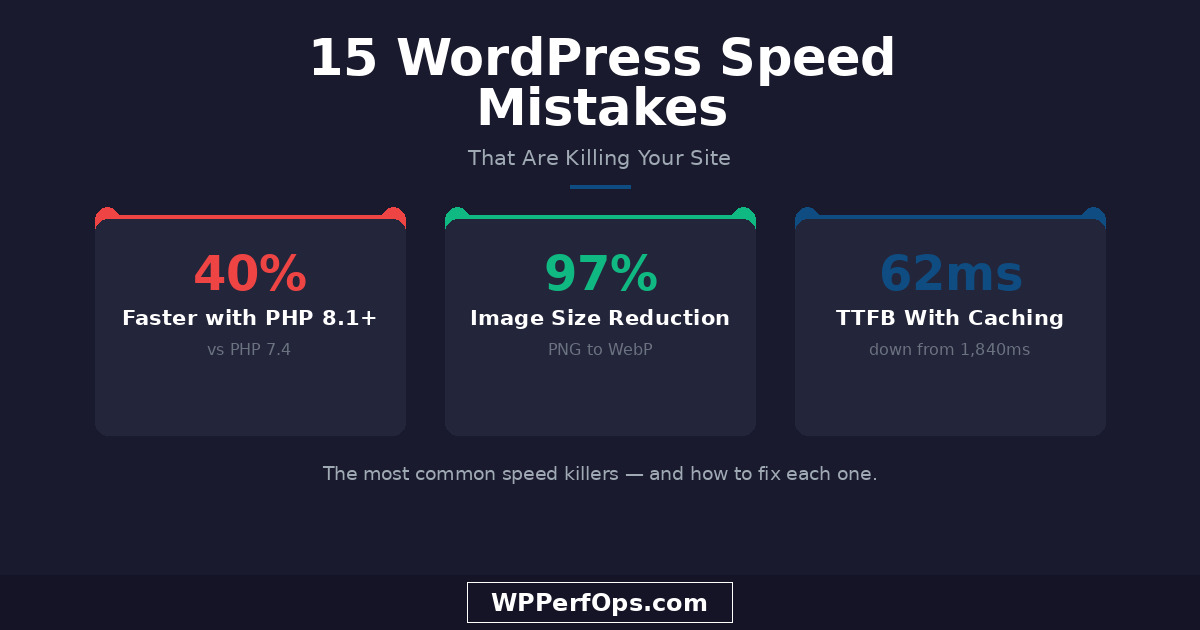
PHP is the engine that powers WordPress. Each major version brings significant performance improvements — PHP 8.1+ is roughly 40% faster at generating pages than PHP 7.4. Yet we still see sites running PHP 7.4 or even 7.2. That’s like running a race with ankle weights.
Check your PHP version under Tools → Site Health → Info → Server in your WordPress dashboard. If you’re below 8.1, contact your host to upgrade. Most managed hosts let you switch PHP versions with a single click. Just test your site afterward — some older plugins may need updates to be compatible.
The Fix
Upgrade to PHP 8.2 or 8.3 through your hosting control panel. If you’re on shared hosting that doesn’t offer PHP 8.1+, that’s a sign it’s time to upgrade your hosting environment. This is one of the highest-impact, lowest-effort changes you can make.
Mistake 2: Skipping Object Caching
Most WordPress sites have page caching, but very few use object caching. Here’s the difference: page caching saves the entire finished HTML page. Object caching saves individual database query results in memory (Redis or Memcached) so WordPress doesn’t have to re-query the database for the same data on every request. For database-heavy sites — WooCommerce stores, membership sites, dynamic content — this is transformative.
2
Without Object Caching, Every Request Hits Your Database
Logged-in users bypass page caching entirely. Without object caching, every admin session, every WooCommerce cart interaction, and every membership check triggers fresh database queries. On busy sites, this creates a bottleneck that no amount of page caching can solve.
TTFB Without Object Cache
300ms
TTFB With Redis
80ms
Mistake 3: No GZIP or Brotli Compression
Text-based files — HTML, CSS, JavaScript — are highly compressible. Without compression, your server sends them at full size. With Brotli compression (the modern successor to GZIP), a 400KB page can shrink to around 80KB. That’s an 80% reduction in transfer size, which directly speeds up how fast the browser can download and start rendering your page.
3
Most Hosts Enable This by Default — But Not All
Test yours at tools.keycdn.com/http2-test or check response headers for content-encoding: br (Brotli) or content-encoding: gzip. If neither appears, your host needs to enable it at the server level — this is not something a WordPress plugin can reliably handle.
Theme & Design Mistakes
Your theme is the single biggest chunk of front-end code your site loads. A poorly chosen or misconfigured theme can add megabytes of unnecessary weight to every page.
Mistake 4: Using a “Do Everything” Multipurpose Theme
4
Multipurpose Themes Load 2–4MB of Assets You’ll Never Use
Those “500+ demos, unlimited layouts” themes come with a cost: they load CSS and JavaScript for every feature they offer, whether you use them or not. Sliders, mega menus, animation libraries, icon font sets — all bundled into every page. A lightweight block theme loads 300–800KB total. That difference alone can cut your LCP in half.
If redesigning isn’t an option right now, at minimum disable unused theme features and use a plugin like Asset CleanUp to prevent unnecessary CSS/JS from loading on pages that don’t need them.
Mistake 5: Loading Custom Fonts Incorrectly
Custom fonts are one of the biggest hidden performance drains. Loading them from Google Fonts adds an extra DNS lookup and external request. Loading too many weights and styles (regular, italic, bold, bold italic, light, thin…) multiplies the problem. And without font-display: swap, visitors see invisible text until the font loads — a terrible experience.
How to Load Fonts the Right Way
- Loading from Google Fonts CDN (extra DNS + connection overhead)
- Using 5+ font weights/styles when you only need 2–3
- Missing
font-display: swap(causes invisible text flash)
- Self-host fonts locally (eliminates external requests)
- Limit to 2–3 weights: regular (400), medium (500), bold (700)
- Always set
font-display: swapand preload critical font files
Mistake 6: Missing Image Dimensions
When images don’t have explicit width and height attributes, the browser doesn’t know how much space to reserve. As each image loads, the page jumps and shifts — text moves, buttons relocate, and users accidentally click the wrong thing. This is Cumulative Layout Shift (CLS), and it’s one of the three Core Web Vitals that directly affects your search rankings.
6
Every Image Without Dimensions Causes Layout Shift
WordPress 5.5+ automatically adds width and height attributes to images inserted through the editor. But custom themes, page builders, and manually coded images often omit them. Audit your pages with Chrome DevTools — any image missing dimensions is a CLS contributor.
CLS Before Fix
0.28
Poor — failing threshold
CLS After Fix
0.04
Good — passing easily
Plugin & Code Mistakes
Plugins are the double-edged sword of WordPress. They extend functionality, but each one adds code that your server has to execute and your visitors’ browsers have to download. The biggest gains often come not from adding another optimization plugin, but from removing the bloat you already have.
Mistake 7: Installing Too Many “Speed” Plugins
7
More Speed Plugins ≠ More Speed
We regularly audit sites running three caching plugins, two image optimizers, a CSS minifier, and a JavaScript defer plugin — all conflicting with each other. The result? Broken pages, duplicate processing, and a site that’s actually slower than having no optimization at all. Pick one caching plugin and one asset optimization plugin. That’s it. In one recent audit, removing five redundant optimization plugins made the site 1.8 seconds faster.
Mistake 8: Not Lazy Loading Images and Videos
Lazy loading defers the download of images and videos that are below the fold — outside the visitor’s initial viewport. Instead of loading all 30 images on a page at once, the browser only loads the ones that are visible and fetches the rest as the user scrolls down. This dramatically reduces initial page weight and speeds up the first meaningful paint.
Lazy Loading Done Right
WordPress 5.5+ adds native lazy loading (loading="lazy") to images automatically. But here’s the critical mistake: don’t lazy-load your hero image. Your above-the-fold hero image is almost always your Largest Contentful Paint element — lazy loading it forces the browser to wait, which directly hurts your LCP score. Exclude the first 1–2 images from lazy loading, and add fetchpriority="high" to your hero image instead.
Mistake 9: External Scripts and Social Widgets
9
Third-Party Scripts Are the Silent Performance Killers
A Facebook Like Box widget loads over 500KB of JavaScript. Disqus comments: 1MB+. Each embedded tweet, Instagram post, or YouTube video without a facade pulls in its own set of scripts and stylesheets. These external resources are outside your control — they can slow down, get blocked, or add latency from distant servers. Delay non-critical third-party scripts until after page load, use facades (static previews that load the real embed on click), and consolidate analytics tags into Google Tag Manager.
Mistake 10: Keeping Inactive Plugins Installed
“I might need it later” is how you end up with 35 plugins, 20 of them deactivated. While deactivated plugins don’t execute code on the front end, they still clutter your update list, increase your attack surface for security vulnerabilities, and some poorly coded plugins can even load files when deactivated. More importantly, the mindset of keeping everything “just in case” usually means active plugins aren’t being audited either.
- Deactivating plugins but leaving them installed “just in case”
- Running plugins that duplicate WordPress core features (like SEO plugins that also do sitemaps when your host already provides them)
- Keeping plugins for one-time tasks (migration, data import) after the job is done
- Delete plugins you don’t actively use — don’t just deactivate
- Audit your plugin list quarterly: does each plugin still earn its place?
- Check if newer WordPress core features have replaced plugins you installed years ago
Image & Media Mistakes
Images typically account for 50–80% of a page’s total weight. Getting image optimization right is often the single biggest performance win available. These two mistakes are responsible for more slow sites than almost anything else.
Mistake 11: Uploading Unoptimized Full-Size Images
11
A Single Unoptimized Image Can Ruin Your LCP
We’ve seen hero images uploaded at 6.2MB as full-resolution PNGs straight from a design tool. After converting to WebP and resizing to the actual display dimensions, that same image becomes 140KB — a 97% reduction. This single change can knock seconds off your load time. Use an image optimization plugin like ShortPixel or Imagify to automatically compress and convert uploads, and always resize images to the maximum display size before uploading.
LCP Before Optimization
6.8s
6.2MB hero image (PNG)
LCP After Optimization
2.1s
140KB hero image (WebP)
Need help optimizing your entire media library? Our optimization service includes bulk image compression, WebP conversion, and proper responsive image configuration as part of every engagement.
Mistake 12: Not Using a CDN
Your server has a physical location. If it’s in New York and a visitor is in Tokyo, every request travels across the Pacific Ocean and back. That’s 200–400ms of latency added to every single asset — images, CSS, JavaScript, fonts. Multiply that by 20–30 requests and you’re looking at seconds of added load time for international visitors.
CDN Options for Every Budget
A Content Delivery Network copies your static assets to servers worldwide. Cloudflare offers a generous free tier that includes CDN, DNS, and basic DDoS protection. BunnyCDN is excellent value for bandwidth-heavy sites. Many managed WordPress hosts include a CDN. There’s no reason not to use one — the performance benefit is immediate and the cost is often zero.
Database & Backend Mistakes
Your database is where WordPress stores everything — posts, pages, options, user data, plugin settings, transient caches, and revision history. Over time, it accumulates bloat that slows down every query. These last three mistakes address the backend problems that caching plugins can mask but never truly fix.
Mistake 13: Never Cleaning the Database
13
Your Database Is Probably 5x Bigger Than It Needs to Be
A site with 200 blog posts might have 47,000 post revisions stored in the database — each one a full copy of the post content. Add expired transients, trashed posts, spam comments, orphaned metadata from deleted plugins, and you’re looking at a database that’s ballooned from 340MB to 1.8GB. That directly impacts query time: a page that takes 890ms to generate with a bloated database might take only 210ms after cleanup. Limit revisions in wp-config.php, schedule regular cleanup with WP-Optimize, and clear out what you don’t need.
Mistake 14: Ignoring Slow Database Queries
Not all database queries are equal. Some plugins run dozens of unoptimized queries on every page load — full table scans, queries without proper indexes, or N+1 query patterns that multiply with your content. If your site makes 300+ database queries per page, you have a serious backend performance problem that no amount of front-end optimization can fix.
How to Find Slow Queries
Install the Query Monitor plugin (free) on your staging site. It shows you every database query, how long each takes, and which plugin or theme file triggered it. Look for queries taking more than 50ms, duplicate queries, and queries without using an index. This is how professionals identify exactly which plugins are dragging your database performance down.
Mistake 15: Running Without a Caching Plugin
We saved this for last because it’s the biggest single fix most WordPress sites can make. Without caching, every visitor triggers the full WordPress execution cycle: PHP processes the request, queries the database multiple times, assembles the page, and sends it back. With page caching, the server stores the finished HTML and serves it directly — bypassing PHP and the database entirely.
15
The Biggest Single Fix You Can Make in 5 Minutes
Without page caching, a typical WordPress site takes 800–2,000ms to generate each page. With caching, that drops to 20–80ms. That’s not a typo — it’s a 10–25x improvement. Install WP Super Cache, W3 Total Cache, or LiteSpeed Cache (if your host uses LiteSpeed), and you’ll see an immediate, dramatic difference in your TTFB. This is the single most impactful change you can make, and it’s free.
TTFB Without Caching
1,840ms
Full PHP + database execution
TTFB With Caching
62ms
Static HTML served directly
Keep Learning
Each mistake above has a dedicated deep-dive guide. Start with the areas where your site needs the most improvement.
Image Deep-Dive
WordPress Image Optimization
Formats, compression, lazy loading, responsive images, and preloading — the complete image guide.
Database Deep-Dive
WordPress Database Optimization
Revisions, transients, autoload bloat, and the cleanup routines that keep queries fast.
The Full Framework
Speed Optimization Checklist
A 33-step checklist that turns these mistakes into a systematic optimization process.
Fix These Mistakes — Or Let Us Do It For You
Some of these fixes take five minutes. Others need server access, database expertise, and careful testing. Our free mini audit identifies exactly which mistakes are slowing your site — so you know where to start.