You’ve upgraded your hosting, enabled caching, optimized your images, and minified your CSS. Your site should be fast. But something still feels sluggish — pages take a beat too long to generate, admin searches are slow, and your TTFB creeps up under load. The culprit is often hiding in plain sight: your database.
WordPress databases accumulate bloat silently. Every post revision, every expired transient, every orphaned meta row from a deleted plugin — it all stays in the database unless you actively clean it up. And unlike image weight (which you can see) or JavaScript bloat (which tools flag), database problems are invisible in front-end speed tests. They show up as slow server response times, sluggish admin panels, and TTFB that keeps climbing.
This guide covers the most common sources of WordPress database bloat and exactly how to fix each one. If you’ve already worked through the hosting and caching mistakes in our speed mistakes guide (especially mistakes 13 and 14), this is the deep dive you need next.
How WordPress Uses Its Database
WordPress stores everything in a MySQL database: posts, pages, comments, settings, user data, plugin configurations, and much more. Understanding the key tables helps you identify where bloat accumulates.
wp_options is the most performance-critical table. Every row with autoload='yes' is loaded into memory on every single page request — before WordPress even starts building the page. Plugins store their settings here, and many set autoload to ‘yes’ by default, whether the data is needed on every request or not.
wp_posts stores all content: posts, pages, revisions, custom post types, menu items, and WooCommerce products/orders. With unlimited revisions, this table grows linearly with every edit you make.
wp_postmeta is typically the largest table on any WordPress site. It uses an Entity-Attribute-Value (EAV) pattern — one row per metadata field per post. A single WooCommerce product can have 40+ meta rows. Multiply by thousands of products, and this table balloons.
Healthy Autoload Size
~500KB
well-maintained site
Bloated Autoload Size
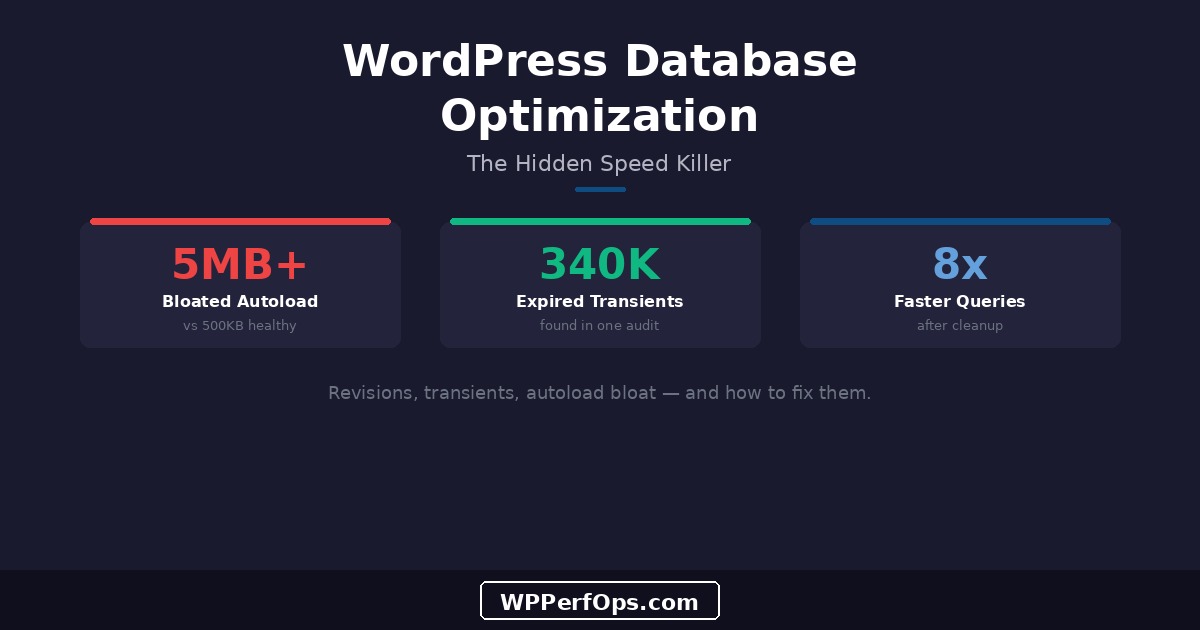
5MB+
neglected site with many plugins
Post Revisions: The Silent Accumulator
By default, WordPress saves every revision of every post indefinitely. Click “Update” 200 times while editing a blog post, and WordPress stores 200 copies of that post in the database — each with its own set of metadata rows. For a site with 500 posts that have been actively edited, this can mean tens of thousands of unnecessary rows in wp_posts and wp_postmeta.
The fix is two-part: limit future revisions and clean up existing ones.
Limit future revisions by adding this line to wp-config.php:
define('WP_POST_REVISIONS', 5);This keeps the 5 most recent revisions per post — enough for rollback without unlimited accumulation.
Clean existing revisions with WP-CLI:
wp post delete $(wp post list --post_type=revision --format=ids) --force --allow-rootAlways Back Up First
Before running any bulk database operations, take a full database backup: wp db export backup.sql --allow-root. Database changes are irreversible. While deleting revisions is safe, cleaning transients or modifying autoloaded options can occasionally break plugin functionality. A backup lets you roll back in seconds if something goes wrong.
Transients: Temporary Data That Isn’t
Transients are WordPress’s built-in mechanism for temporary cached data. Plugins use them to store API responses, external data fetches, and computed values with an expiration time. In theory, transients expire and get cleaned up. In practice, WordPress only deletes expired transients when something requests them — meaning expired transients can sit in your database indefinitely if nobody asks for them again.
340K
Expired Transients Found in One WooCommerce Audit
WooCommerce is the worst offender. Every visitor who interacts with the cart gets a wc_session_ transient. On a busy store, these accumulate by the thousands daily. We audited a WooCommerce store that had 340,000 expired session transients — 2.1GB of dead data sitting in wp_options. Since autoloaded options and transients share the same table, this dead weight slowed down every single page request.
Clean expired transients regularly:
# Delete only expired transients (safe)
wp transient delete --expired --allow-root

# Nuclear option: delete ALL transients (they'll regenerate)
wp transient delete --all --allow-root
If you have object caching (Redis/Memcached) enabled, transients are stored in memory instead of the database, which eliminates this problem entirely. Yet another reason why object caching is essential for busy sites.
The Autoloaded Options Problem
Every row in wp_options with autoload='yes' is loaded into PHP memory on every single page request. This is WordPress’s way of preloading frequently needed data — site URL, active plugins, theme settings — so it doesn’t have to query the database for each one individually. The problem: plugins add autoloaded options liberally and almost never clean them up, even when uninstalled.
Audit your autoloaded data size:
SELECT SUM(LENGTH(option_value)) as autoload_size
FROM wp_options
WHERE autoload = 'yes';
Find the biggest offenders:
SELECT option_name, LENGTH(option_value) as size
FROM wp_options
WHERE autoload = 'yes'
ORDER BY size DESC
LIMIT 20;
Over 1MB of Autoloaded Data Is a Red Flag
A healthy WordPress site typically has 300KB-800KB of autoloaded data. Over 1MB means plugins are storing large serialized arrays, cached API responses, or configuration data that doesn’t need to load on every request. For non-critical options, you can safely set autoload to ‘no’: UPDATE wp_options SET autoload = 'no' WHERE option_name = 'offending_option';. The data will still be available when requested — it just won’t load preemptively on every page.
Orphaned Metadata
When you delete a post, WordPress removes the row from wp_posts — but the associated metadata in wp_postmeta often stays behind. The same happens with deleted users (wp_usermeta) and deleted comments (wp_commentmeta). Over years, these orphaned rows accumulate into thousands of useless database entries.
Identify orphaned post meta:
SELECT COUNT(*) FROM wp_postmeta
WHERE post_id NOT IN (SELECT ID FROM wp_posts);
If the count is significant (thousands or more), clean them up:
DELETE FROM wp_postmeta
WHERE post_id NOT IN (SELECT ID FROM wp_posts);
Apply the same logic to wp_usermeta (checking against wp_users) and wp_commentmeta (checking against wp_comments). Or use WP-Optimize, which handles all of these cleanups through a user-friendly interface.
wp_postmeta: The Biggest Table Problem
WordPress’s EAV (Entity-Attribute-Value) pattern for metadata means every piece of information about a post is stored as a separate row. A WooCommerce product might have _price, _regular_price, _sale_price, _sku, _stock_status, _weight, _length, _width, _height, and dozens more — each its own row. With 1,000 products, that’s 40,000+ rows just for product metadata.
The problem compounds when plugins add their own meta fields. ACF (Advanced Custom Fields) stores every field as post meta. SEO plugins store title, description, and schema data as post meta. Analytics plugins store view counts as post meta. A single post can easily have 50+ meta rows, and querying wp_postmeta with a meta_query requires full table scans unless you have proper indexes.
Use Query Monitor to identify slow queries hitting wp_postmeta. If you see queries taking 100ms+ on this table, consider adding a custom index for your most-queried meta_key values or migrating to a plugin that uses custom tables (like WooCommerce’s High-Performance Order Storage).
Query Time Before Cleanup
1.2s
Query Time After Cleanup
0.15s
Database Maintenance Tools and Routine
You don’t need to run SQL queries manually every week. These tools automate database maintenance.
WP-Optimize is the most popular database cleanup plugin. It handles revisions, transients, spam comments, trashed posts, and orphaned data with scheduled automation. Set it to run weekly and forget about it.
WP-CLI gives you command-line control for scripting and cron jobs:
# Check database size per table
wp db size --tables --allow-root

# Optimize all tables (reclaims space)
wp db optimize --allow-root

# Delete all spam comments
wp comment delete $(wp comment list --status=spam --format=ids) --force --allow-root
Query Monitor (the plugin) identifies slow database queries in real-time. Install it temporarily on staging, browse your key pages, and look for queries exceeding 50ms. These are your optimization targets.
- Weekly: Automated cleanup of expired transients, spam, and trash
- Monthly: Review database size, check autoloaded data, run
wp db optimize - Quarterly: Full audit — orphaned meta, revision count, table sizes, slow queries
- After plugin removal: Check for leftover options and meta rows
For a broader view of ongoing maintenance, see our guide to preventing speed regression, which covers database maintenance as part of a complete monthly routine.
Keep Learning
Database optimization is one layer of a complete speed strategy. These guides cover the other layers.
The Full Framework
Speed Optimization Checklist
33 steps covering every optimization layer, from server to monitoring — organized by impact.
Common Mistakes
15 WordPress Speed Mistakes
The most common performance mistakes, including two database-specific ones this guide expands on.
Understand the Metrics
Core Web Vitals for WordPress
What LCP, INP, and CLS mean, how to measure them, and why Google uses them to rank your site.
Your Database Might Be the Bottleneck
Database bloat is invisible but expensive. Our free mini audit includes a full database health check — we’ll tell you exactly how much dead data is slowing your site and what to clean up first.