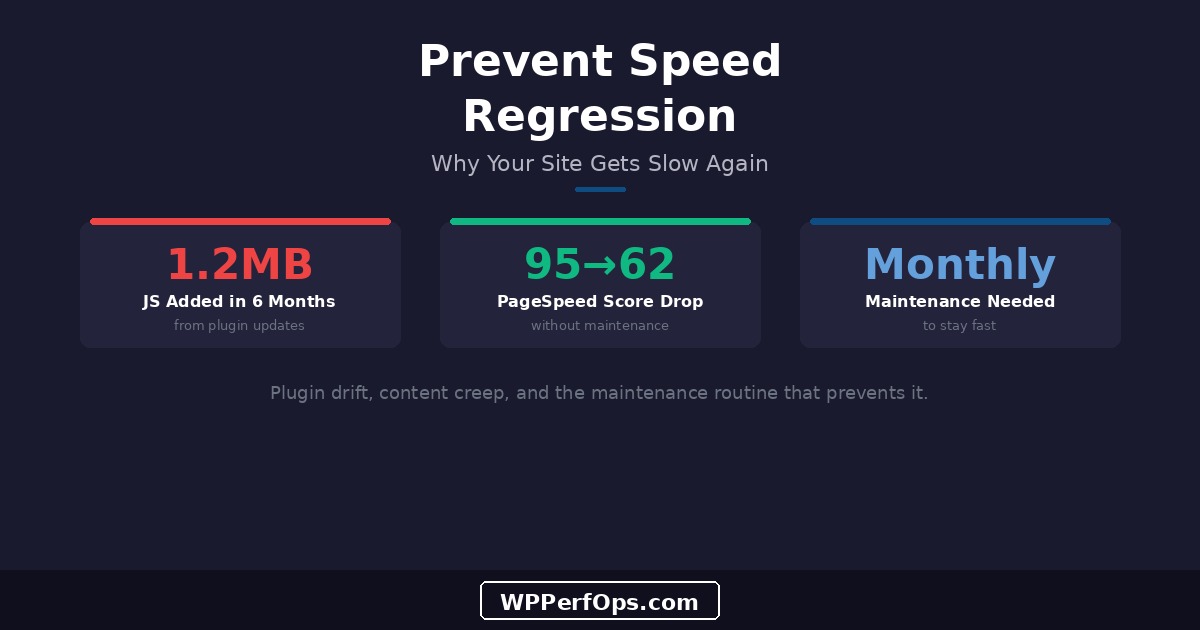
You invested time (or money) getting your WordPress site fast. PageSpeed scores were green, load times were under 2 seconds, and everything felt snappy. Then, three months later, it’s slow again. This isn’t unusual — it’s the norm. WordPress sites naturally regress toward poor performance unless you actively prevent it. This guide explains why it happens and gives you a concrete maintenance routine to stop it.
Why Speed Regresses
WordPress is a living system. Unlike a static HTML site that stays exactly how you built it, WordPress changes constantly. Plugins auto-update in the background. Content editors add pages and media. New plugins get installed for “just this one thing.” The database grows with every revision, comment, and session. Each change is small, but they compound — and nobody notices until the site is slow again.
The root cause is always the same: optimization is treated as a one-time project instead of an ongoing practice. You wouldn’t service your car once and expect it to run perfectly for five years. WordPress performance is the same — it needs regular maintenance to stay healthy.
Plugin Update Drift
Plugin developers add features over time. What started as a lightweight 50KB plugin two years ago might now be 200KB with new functionality, additional JavaScript libraries, and more CSS. With WordPress auto-updates enabled, these changes happen without you noticing. One plugin adds 20KB of JS, another adds a new stylesheet, a third introduces a web font — individually negligible, collectively significant.
1.2MB
Of JavaScript Added in 6 Months — From Plugin Updates Alone
We tracked one client’s site over six months without any manual changes. The total JavaScript payload grew from 480KB to 1.7MB purely from plugin auto-updates. Three plugins added new features with bundled libraries, one introduced a new analytics module, and another switched from a lightweight carousel to a heavier one. The site owner had no idea — until their PageSpeed score dropped by 25 points.
The fix isn’t to disable auto-updates (that creates security risks). It’s to monitor total page weight monthly and investigate when it increases. Chrome DevTools Network tab shows exactly how much CSS and JS your pages load — track this number over time.
Content Creep
Content editors are focused on creating great content — not on performance. They upload 4MB photos straight from their phone, embed YouTube videos without facades, add social sharing widgets, and install “just one more plugin” for a specific page. None of this is malicious; it’s simply not their job to think about page weight. For best practices on image handling, see our image optimization guide.
Create an Editorial Image Guide
Write a one-page guide for your content team: maximum image dimensions (2400px wide), required format (JPEG or WebP, never PNG for photos), maximum file size before upload (500KB), and no embedded videos without approval. Better yet, install an image optimization plugin like ShortPixel that compresses automatically on upload — it’s a safety net for when guidelines get forgotten.
Database Bloat Over Time
Without scheduled maintenance, your WordPress database grows continuously. Post revisions accumulate with every edit. Expired transients pile up (especially on WooCommerce sites). Spam comments, even when filtered by Akismet, create database entries. Trashed posts and abandoned drafts linger indefinitely. For a deep dive into database-specific optimizations, see our database optimization guide.
Database Size Month 1
45MB
after initial cleanup
Database Size Month 12
380MB
no maintenance performed
Configuration Drift
Optimization settings don’t always survive updates. A caching plugin update might reset your exclusion rules. A theme update could re-introduce render-blocking CSS you’d already addressed. A new plugin might override your carefully configured .htaccess rules. CDN configurations can expire when SSL certificates renew. Each of these resets undoes specific optimization work — and they happen silently.
The solution: document every optimization change you make. Keep a changelog with the date, what you changed, and why. After any WordPress core update, theme update, or plugin update, spot-check your key configurations: is caching still working? Are your CDN headers correct? Is the critical CSS still being inlined? For a comprehensive list of what to check, use our speed optimization checklist.
The Monthly Maintenance Checklist
This routine takes 15–20 minutes per month and prevents the slow drift back to poor performance.
- Run PageSpeed Insights on 3 key pages (homepage, a blog post, a product/service page) — compare to last month
- Check total page weight in Chrome DevTools Network tab — flag if it’s increased by more than 100KB
- Review any new plugins added since last check — do they justify their performance cost?
- Run database cleanup: delete expired transients, clear spam/trash, limit revisions
- Verify caching is working: check response headers for cache indicators on key pages
- Test mobile performance separately — mobile scores often degrade faster than desktop
- Check Core Web Vitals in Google Search Console — look for any regressions in real user data
- Review recent plugin updates — any that added significant features (and weight)?
Quarterly Deep Review
Every three months, go deeper than the monthly check.
Full plugin audit. List every active plugin and ask: does this still earn its place? Have better (lighter) alternatives appeared? Are any plugins now redundant because WordPress core has added the same feature? See our mistakes guide for common plugin pitfalls.
Database size check. Run wp db size --tables --allow-root and compare to the previous quarter. Investigate any tables that have grown significantly.
Theme and configuration review. Check that your optimization configurations haven’t been reset by updates. Verify critical CSS, font loading, and caching rules are intact.
Schedule It Like an Oil Change
Put quarterly performance reviews on your calendar. Treat them as non-negotiable maintenance — not optional housekeeping. The 30 minutes you spend quarterly prevents hours of emergency troubleshooting when your client or boss notices the site is slow again. If you manage multiple sites, see our agency speed management guide for scaling this process.
Monitoring Tools
Google Search Console (free) — The Core Web Vitals report shows real-user performance data aggregated over 28 days. This is the single most important monitoring tool because it reflects how Google sees your site. Set up email alerts for performance regressions. For more on what these metrics mean, see our Core Web Vitals guide.
UptimeRobot (free tier) — Monitors your site’s uptime and response time every 5 minutes. The free tier covers 50 monitors. Set alerts for downtime and for response time exceeding your threshold (e.g., TTFB > 500ms).
SpeedCurve or Calibre (paid) — For sites where speed directly impacts revenue, these tools provide continuous synthetic monitoring from multiple locations. They track performance budgets, alert on regressions, and show trends over time. Worth the investment for e-commerce and high-traffic content sites.
When DIY Maintenance Isn’t Enough
If maintaining speed is taking too much of your time, or if regressions keep happening despite your best efforts, that’s exactly what our Premium plan is designed for. It includes ongoing performance monitoring, monthly optimization maintenance, priority support, and proactive intervention when metrics degrade — so your site stays fast while you focus on running your business. The cost of a slow site far exceeds the investment in ongoing maintenance.
Check our pricing page for details, or start with a free mini audit to see where your site stands today.
Keep Learning
Prevention starts with understanding the fundamentals. These guides cover the optimization work that maintenance protects.
The Full Framework
Speed Optimization Checklist
The 33-step process for optimizing WordPress sites from server to monitoring.
Database Layer
Database Optimization Guide
Revisions, transients, autoload bloat, and the cleanup routines that keep your database healthy.
Calculate the Cost
How a Slow Site Costs You Money
The business case for speed: why ongoing maintenance is an investment, not a cost.
Keep Your Site Fast — Without the Hassle
Speed optimization shouldn’t be a never-ending chore. Our Premium plan includes ongoing monitoring and monthly maintenance — so your site stays fast while you focus on your business.