You’ve optimized your images, cleaned your database, and installed the right caching plugin — but your site still feels sluggish. Before you spend another hour tweaking plugin settings, check the foundation: your hosting. No amount of optimization can compensate for a slow server. This guide breaks down the hosting landscape for WordPress, what actually matters for speed, and how to tell if it’s time to migrate.
Why Hosting Matters More Than You Think
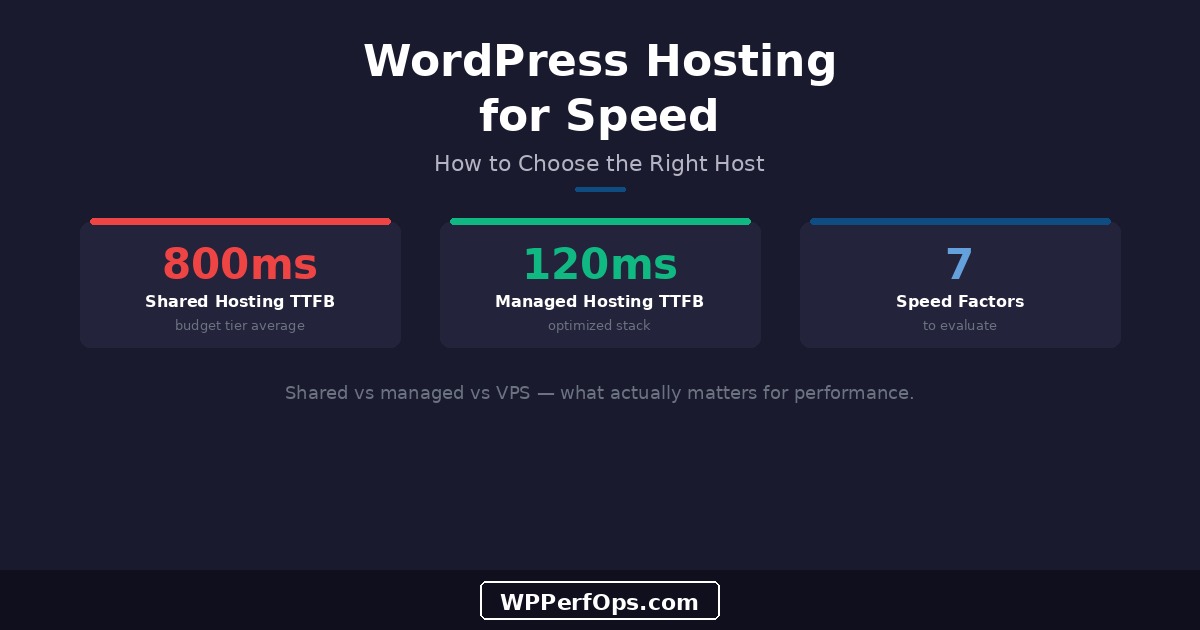
Your hosting determines the baseline speed of every single page load. When someone visits your site, the first thing that happens is a request to your server. The server processes PHP, queries the database, assembles the HTML, and sends it back. This is measured as Time to First Byte (TTFB) — and it’s entirely determined by your hosting infrastructure.
Good Hosting
<200ms
TTFB on managed hosting
Bad Hosting
800ms+
TTFB on shared hosting
A 600ms difference in TTFB might not sound like much, but it cascades through every metric. Your LCP can’t start until the HTML arrives. Your CLS is affected because layout shifts happen while waiting for content. Google measures TTFB as part of its Core Web Vitals assessment. For more on how these metrics connect, see our Core Web Vitals guide.
Types of WordPress Hosting
Shared Hosting ($3–10/month)
Shared hosting puts hundreds of websites on a single server, sharing CPU, RAM, and bandwidth. It’s the cheapest option and fine for personal blogs with under 1,000 monthly visits. But for business sites, the “noisy neighbor” problem is real: another site on your server running a heavy cron job or getting a traffic spike directly impacts your performance. You have no control over PHP versions, server configuration, or caching infrastructure.
Managed WordPress Hosting ($25–50/month)
Managed WordPress hosts (Kinsta, WP Engine, Cloudways, Flywheel) provide WordPress-optimized server stacks with built-in page caching, automatic backups, staging environments, and PHP version management. They handle server maintenance so you focus on your site. For most business sites, this is the sweet spot — predictable performance with minimal technical overhead. Many include a CDN and server-level caching that outperforms any WordPress plugin.
VPS/Cloud Hosting ($20–80/month)
Virtual Private Servers on DigitalOcean, Vultr, or Linode give you dedicated resources and full server control. Paired with a management panel like GridPane or SpinupWP, you get managed-hosting convenience with VPS flexibility and often better performance for the price. The tradeoff: more technical knowledge required. Best for developers, agencies managing multiple sites, and sites needing custom server configurations.
Dedicated Servers ($100+/month)
An entire physical server dedicated to your site(s). Maximum performance, maximum control, maximum cost. Only necessary for high-traffic sites (100,000+ monthly visits) or applications with specific compliance requirements. If you’re reading this guide, you probably don’t need dedicated hosting — VPS or managed hosting will serve you better at a fraction of the cost.
The 7 Speed Factors to Evaluate
When comparing hosts, ignore marketing claims about “blazing fast” or “optimized for WordPress.” Instead, evaluate these seven concrete factors.
1. PHP Version Support. Your host must offer PHP 8.2 or higher. PHP 8.2+ is roughly 40% faster than PHP 7.4 at generating pages. If your host doesn’t offer PHP 8.1+, that’s a disqualifying factor. See Mistake 1.
2. Object Caching (Redis/Memcached). Object caching stores database query results in memory, reducing TTFB by 30–50% for dynamic content. Essential for WooCommerce, membership sites, and any site with logged-in users. Many shared hosts don’t offer this.
3. Server Location. Choose a server geographically close to your primary audience. A server in Virginia serving visitors in Sydney adds 200–400ms of latency. A CDN helps, but your origin server location still matters for uncached requests.
4. SSD/NVMe Storage. In 2026, there’s no excuse for spinning disk storage. NVMe SSDs are 5–10x faster than traditional SSDs for random I/O operations. Database queries, which are the primary bottleneck for WordPress, benefit enormously from fast storage.
5. HTTP/2 or HTTP/3 Support. HTTP/2 multiplexes multiple requests over a single connection, dramatically speeding up page loads with many assets. HTTP/3 (QUIC) goes further with zero-round-trip connections. Both should be standard in 2026.
6. Built-in CDN or Easy Integration. A CDN serves static assets from edge locations worldwide. Some managed hosts include one (Kinsta uses Cloudflare Enterprise). Others should at least make CDN integration straightforward.
7. Staging Environments. The ability to test changes before deploying to production. Essential for testing plugin updates, PHP upgrades, and optimization changes without risking your live site.
What to Look For (and What to Avoid)
- PHP 8.2+ with easy version switching
- Redis or Memcached for object caching
- NVMe SSD storage
- HTTP/2 or HTTP/3 support
- Free SSL certificates (Let’s Encrypt)
- Automatic daily backups with easy restore
- Staging environment included
- Server-level page caching (not relying on a WordPress plugin)
- Brotli compression enabled by default
- “Unlimited” bandwidth, storage, and websites — a marketing trick that hides resource throttling
- No control over PHP version (stuck on whatever they provide)
- No object caching option at any tier
- No staging environment
- Support that can’t answer basic performance questions
The Noisy Neighbor Problem
500+
Sites Sharing Your Server on Budget Shared Hosting
On shared hosting, your site competes for CPU and RAM with hundreds of other sites. When another site gets a traffic spike, runs a heavy backup, or has a misconfigured cron job, your TTFB jumps from 200ms to 2,000ms. You’ll see this as intermittent slowness that’s impossible to reproduce consistently — fast one minute, crawling the next. This unpredictability is the core argument against shared hosting for any business-critical site.
Managed Hosting: The Sweet Spot for Most Sites
For business sites, WooCommerce stores, and professional blogs, managed WordPress hosting delivers the best balance of performance, convenience, and cost. You get a WordPress-optimized server stack without needing to manage the server yourself.
What managed hosts typically include that shared hosting doesn’t: server-level page caching (often Nginx-based, faster than any plugin), automatic PHP version management, Redis object caching, daily backups with one-click restore, staging environments, and WordPress-specific security hardening. The $25–50/month premium over shared hosting pays for itself in time saved and performance gained.
Migration Is Easier Than You Think
Most managed WordPress hosts offer free migration as part of onboarding. Kinsta, WP Engine, Cloudways, and Flywheel all have migration tools or dedicated migration teams. You don’t need to deal with database exports, file transfers, or DNS configuration yourself. If hosting is your bottleneck, switching is a solved problem — the hard part is deciding to do it.
VPS and Cloud: Maximum Control
For developers and agencies who want full control over the server stack, a VPS on DigitalOcean, Vultr, or Linode paired with a management panel provides the best performance-per-dollar ratio. You get dedicated CPU and RAM (no noisy neighbors), root access, and the ability to configure Nginx, PHP-FPM, Redis, and other server components exactly as needed.
Server management panels like GridPane, SpinupWP, and RunCloud bridge the gap between raw VPS access and managed hosting convenience. They handle server provisioning, security hardening, automatic updates, and WordPress-specific optimizations while giving you the control to customize everything. For agencies managing 10+ client sites, this approach typically costs less per site than managed hosting while delivering equal or better performance.
The tradeoff is responsibility: you’re accountable for backups, security patches, and troubleshooting server issues. Management panels handle most of this, but you still need enough technical knowledge to debug problems when they arise. If that sounds like your team, see our agency speed guide for multi-site management strategies.
How to Test Your Current Hosting
Before deciding to migrate, measure what you have. These tests take 10 minutes and give you objective data.
Measure TTFB with curl from your command line or WebPageTest. Run the test 5 times and average the results — single measurements can be misleading due to caching and server load fluctuations.
Check your PHP version — if you’re below PHP 8.1, that’s an immediate upgrade or migration trigger.
Test object caching availability — ask your host if Redis or Memcached is available on your plan.
Monitor uptime for 30 days with UptimeRobot (free tier). Anything below 99.9% uptime is unacceptable for a business site — that’s over 8 hours of downtime per year.
Quick Server Check with WP-CLI
Run wp --info to see your PHP version, MySQL version, and WordPress root directory. Run wp eval "echo (extension_loaded('redis') ? 'Redis available' : 'No Redis');" to check for Redis support. These commands give you an instant hosting health snapshot.
When to Migrate
Consider migrating if any of these apply to your current hosting:
- TTFB consistently over 300ms (test 5+ times across different hours)
- No PHP 8.1+ available (or they charge extra for it)
- No object caching (Redis/Memcached) at any tier
- Frequent downtime or 503 errors under normal traffic
- Support can’t explain why your site is slow
- No staging environment (you test changes on the live site)
Migration is a one-time effort that pays dividends for years. If your hosting is the bottleneck, no amount of plugin optimization will compensate. Fix the foundation first, then optimize everything on top of it.
Keep Learning
Hosting is the server layer. These guides cover the optimization layers you build on top of it.
Server-Level Mistakes
15 WordPress Speed Mistakes
Mistakes 1–3 cover the server layer in detail — PHP version, object caching, and compression.
Understand the Metrics
Core Web Vitals for WordPress
What LCP, INP, and CLS mean, how to measure them, and how TTFB factors into your scores.
See Real Results
Our Case Studies
Real WordPress sites we’ve optimized, with before/after metrics including hosting migration results.
Not Sure If Your Hosting Is the Problem?
Our free mini audit measures your server response time, checks your hosting configuration, and tells you whether your hosting is holding your site back — or if the bottleneck is elsewhere.