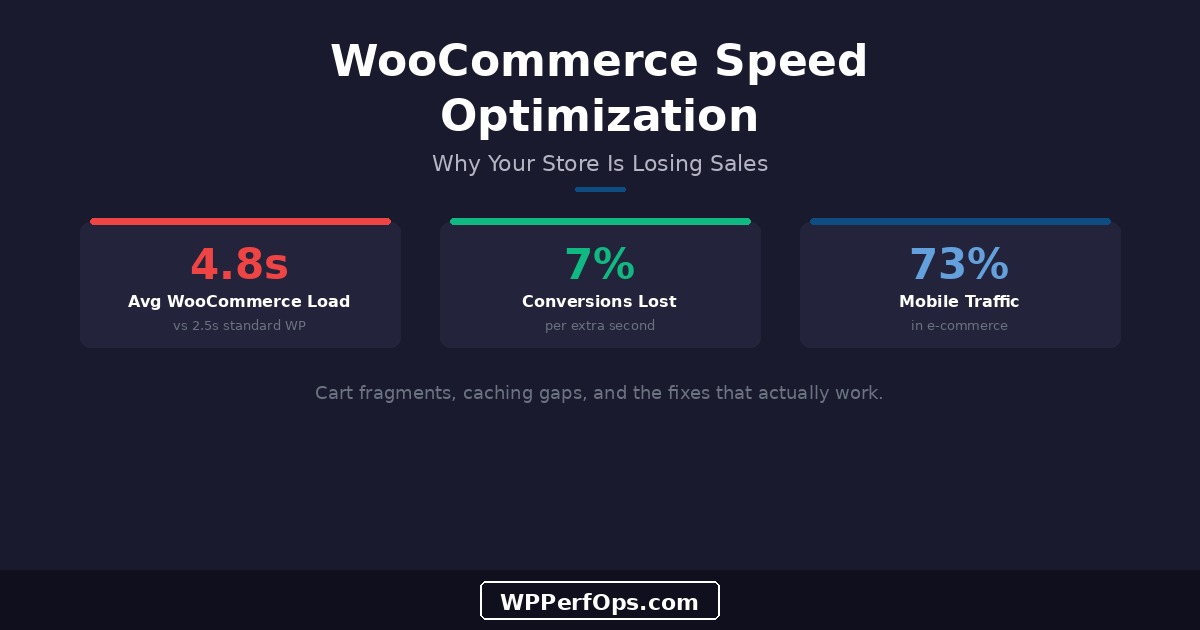
WooCommerce powers over 28% of all online stores, making it the most popular e-commerce platform on the web. But popularity doesn’t mean performance. The average WooCommerce store loads significantly slower than a standard WordPress site — and every extra second is costing you sales. Research consistently shows that a one-second delay in page load time reduces conversions by 7%. For a store doing $10,000/month, that’s $700 in lost revenue every month from speed alone.
The frustrating part: WooCommerce has unique performance challenges that generic WordPress speed advice doesn’t address. Logged-in users bypass page caching entirely. Cart fragment AJAX requests fire on every page load. Product pages serve multiple high-resolution images. Database queries multiply with every product variation, review, and order. Standard optimization gets you partway there, but WooCommerce stores need a targeted approach.
The Business Case for WooCommerce Speed
Speed isn’t just a technical metric for e-commerce — it’s a revenue lever. We cover the full financial impact of site speed in our cost of a slow site article. The short version: for online stores, the conversion impact is even more dramatic than for content sites because visitors are ready to spend money. A slow checkout doesn’t just frustrate them — it sends them to a competitor.
Why WooCommerce Is Slower Than Standard WordPress
A fresh WordPress install with a lightweight theme can achieve sub-second load times easily. Add WooCommerce, and you’re fighting an uphill battle. Here’s why.
WooCommerce is database-heavy by nature. Every product, variation, attribute, order, customer record, and review lives in the database. A store with 500 products and 10,000 orders has hundreds of thousands of database rows. Every product page triggers queries for pricing, inventory, variations, related products, and reviews — far more than a standard blog post.
The bigger problem is caching. Page caching — the single most effective WordPress optimization — works by saving a static HTML copy of each page and serving it to visitors without executing PHP or querying the database. But WooCommerce breaks this model for logged-in users. Anyone with items in their cart, anyone on the My Account page, and anyone during checkout is seeing dynamic, user-specific content that can’t be served from a page cache. On a busy store, a significant percentage of your traffic is logged in.
Avg WordPress Site
2.5s
with basic optimization
Avg WooCommerce Store
4.8s
with same optimization
Product Page Performance
Product pages are where speed matters most — this is where buying decisions happen. A slow product page doesn’t just frustrate visitors; it actively reduces the perceived value of your product. Here’s what makes product pages heavy and how to fix each issue.
Product Image Galleries
Each product typically has 3-8 images: the main product photo, alternate angles, detail shots, lifestyle images, and size/color variations. WooCommerce loads gallery scripts (Flexslider or PhotoSwipe for lightbox), and each image needs a full-size version for zoom functionality. On a product page with 8 images averaging 300KB each, that’s 2.4MB of images alone — before any other content loads.
Optimize Product Images
Limit product galleries to 5-6 images maximum — more than that rarely influences buying decisions. Convert all product images to WebP format, compress at 75-80% quality, and ensure gallery thumbnails are properly sized (not full-resolution images scaled down with CSS). For a complete image optimization pipeline, see our image optimization guide.
Variable Products and AJAX
Variable products (sizes, colors, materials) trigger AJAX requests when a customer selects a variation. Each selection queries the database for pricing, stock status, and the variation’s unique image. If you have products with 50+ variations (common in apparel), this generates significant server load. Consider using a variation swatches plugin that preloads variation data on page load instead of making individual AJAX calls per selection.
Related Products and Cross-Sells
WooCommerce’s related products, upsells, and cross-sells each run additional database queries. The default related products query scans all products sharing the same categories or tags — which can be expensive on large catalogs. If you have 5,000+ products, consider limiting related products to 3-4 items or using a caching-aware related products plugin that pre-computes relationships.
Cart and Checkout Speed
Cart and checkout are the most conversion-critical pages on your store. A customer who’s added items to their cart has already decided to buy — a slow checkout is the last barrier between intention and payment.
Cart Fragments: The #1 WooCommerce Performance Killer
!
Cart Fragments Fire an AJAX Request on Every Single Page Load
WooCommerce uses a feature called “cart fragments” to update the mini-cart widget in your header. It works by making an AJAX POST request to ?wc-ajax=get_refreshed_fragments on every page load — even pages that don’t display a cart widget. This request hits the server (bypassing page cache since it’s a POST), executes WooCommerce’s cart logic, queries the database, and returns the updated cart HTML. On a busy store, this single feature can generate more server load than all your actual page views combined.
The fix depends on your setup. If you don’t use a mini-cart widget in your header, you can disable cart fragments entirely by dequeuing the wc-cart-fragments script in your theme’s functions.php. If you do use a mini-cart, limit cart fragments to cart and checkout pages only — there’s no reason to refresh the mini-cart on your blog posts or About page. Several performance plugins (like Perfmatters or FlyingPress) offer a one-click toggle for this.
Checkout Page Optimization
Your checkout page should be the leanest page on your entire site. Every script, stylesheet, and third-party resource that loads on checkout is a potential barrier to completion.
- Remove unnecessary form fields — every field adds friction and increases page weight
- Load payment gateway scripts ONLY on the checkout page, not sitewide
- Disable live shipping rate calculators if you offer flat-rate or free shipping
- Defer non-essential scripts (analytics, chat widgets, popups) on checkout
- Use WooCommerce’s block-based checkout (introduced in WC 8.3+) — it’s lighter than the classic shortcode
WooCommerce Caching Strategies
Caching for WooCommerce requires a different approach than standard WordPress caching. You can’t just install a caching plugin and forget it — you need to understand what can be cached, what can’t, and how to handle the gray areas. For a broader look at caching mistakes, see mistake #2 in our speed mistakes guide.
Page Caching: Know the Limits
Page caching works great for your shop catalog, category pages, and product pages — for logged-out visitors. But it must exclude cart, checkout, My Account, and any page with personalized content. Most caching plugins handle WooCommerce exclusions automatically, but verify: visit your cart page, check the response headers or page source for cache indicators. If your cart page is being cached, you’ll see stale cart data and broken checkout flows.
Object Caching: Essential for WooCommerce
If there’s one optimization that matters more for WooCommerce than anything else, it’s object caching with Redis or Memcached. Object caching stores database query results in memory, so repeated queries (product prices, variation data, cart totals) are served from RAM instead of hitting MySQL. For logged-in users who bypass page cache, object caching is the only caching layer that helps.
TTFB Without Redis
450ms
logged-in user, product page
TTFB With Redis
90ms
same user, same page
CDN Configuration for WooCommerce
CDN setup for WooCommerce requires careful cookie handling. Your CDN must be configured to bypass caching for requests containing WooCommerce session cookies (wp_woocommerce_session_*). If your CDN caches a page with a customer’s cart data and serves it to another visitor, you’ll have a serious problem. Most CDN providers have WooCommerce-specific configuration guides — follow them carefully.
Database Optimization for WooCommerce
WooCommerce stores generate database bloat at a much faster rate than standard WordPress sites. Every order, every customer session, every product variation creates rows that accumulate over time.
The wp_postmeta Explosion
WooCommerce stores product data, order details, and customer information in the wp_postmeta table. A store with 1,000 products and 5,000 orders can easily have 500,000+ rows in this single table. Each meta query requires scanning or indexing this table, and as it grows, queries slow down proportionally. WooCommerce 8.0+ introduced High-Performance Order Storage (HPOS) which moves order data to dedicated tables — if you haven’t migrated yet, this should be a priority.
Session Transients
!
WooCommerce Sessions Can Bloat Your Database by Gigabytes
Every visitor who adds items to a cart gets a wc_session_ transient stored in the database. On a busy store, these accumulate rapidly. We’ve audited WooCommerce stores with over 340,000 expired session transients occupying 2.1GB of database space. Since wp_options doesn’t have an efficient cleanup mechanism for expired transients, this dead data slows down every autoloaded query. Clean WooCommerce sessions regularly with WP-CLI: wp transient delete --expired.
Audit Your Database Size
Use WP-CLI to check your database health: wp db size --tables --allow-root shows the size of every table. If wp_options is over 50MB or wp_postmeta is over 200MB, you likely have significant bloat. For a deep dive into database optimization techniques, see our database optimization guide.
Plugin Audit for WooCommerce
WooCommerce stores tend to accumulate plugins faster than any other type of WordPress site. Payment gateways, shipping calculators, inventory management, email marketing, reviews, wishlists, product filters — each adds weight. The key is distinguishing between plugins that are essential for your business and plugins that add convenience at a performance cost.
- Multiple analytics plugins tracking the same data (Google Analytics + Hotjar + Facebook Pixel each loading their own scripts)
- Social sharing buttons on product pages (rarely clicked, always loaded)
- Popup/exit-intent plugins loading on every page including checkout
- “Speed optimization” plugins that conflict with each other (see Mistake 7)
- Use Query Monitor to identify the slowest plugins on product and checkout pages
- Conditionally load plugin scripts only on pages that need them (Asset CleanUp or Perfmatters)
- Consolidate analytics into Google Tag Manager — one script instead of five
- Review your plugin list quarterly: does each plugin still justify its performance cost?
Mobile WooCommerce Performance
Over 73% of e-commerce traffic now comes from mobile devices. If your store isn’t fast on a phone, you’re losing the majority of your potential customers.
5x
Mobile Shoppers Are 5x More Likely to Abandon on Slow Sites
Mobile users are on slower connections, less powerful processors, and smaller screens where layout shifts are more disruptive. They’re also more likely to be comparison shopping — if your product page takes 5 seconds to load and a competitor’s takes 2, they’re gone. Test your store on real mobile devices, not just Chrome’s mobile emulator, which doesn’t accurately simulate mobile CPU and network constraints.
Mobile-specific optimizations for WooCommerce include: ensuring add-to-cart buttons have at least 44px touch targets, lazy loading product gallery images below the first image, optimizing product filter interactions for touch (not hover), and serving appropriately sized images via srcset rather than desktop-sized images scaled down with CSS.
Measuring WooCommerce Speed
Testing a WooCommerce store requires more nuance than testing a standard WordPress site. You need to measure multiple pages and multiple user states.
Test logged-out and logged-in separately. Your homepage might score 95 on PageSpeed Insights — but that’s the cached, logged-out version. Test the same page while logged in with items in your cart. The results will be dramatically different, and that logged-in experience is what your actual customers see.
Test the full shopping journey. Don’t just test your homepage and call it optimized. Test: homepage → category page → product page → add to cart → cart page → checkout. Each step has different performance characteristics. Use WebPageTest’s multi-step scripting to automate this flow.
Use Query Monitor for server-side insights. Query Monitor shows you exactly how many database queries each page runs, which plugins are adding load, and where time is being spent on the server. For a product page making 400+ database queries, this is the fastest way to identify what to optimize. Cross-reference with your Core Web Vitals to get the full picture.
Monitor real user data, not just lab tests. Google Search Console’s Core Web Vitals report shows how real visitors experience your store. Lab tests (Lighthouse, PageSpeed Insights) simulate ideal conditions. Real users are on 3G connections, older phones, and in geographic locations far from your server. Both perspectives matter.
Keep Learning
WooCommerce speed optimization builds on the fundamentals of WordPress performance. These resources cover the foundation.
Revenue Impact
How a Slow Site Costs You Money
The complete business case for speed: conversion rates, bounce rates, and the revenue you’re losing every month.
Optimize Images
WordPress Image Optimization Guide
The complete pipeline for product images: formats, compression, responsive images, and delivery optimization.
See Real Results
Fashion E-Commerce Case Study
How we optimized a WooCommerce fashion store — with before/after metrics and the specific changes that made the difference.
Your Store’s Speed Is Costing You Sales
Every second of load time costs you customers. Our free mini audit reveals exactly how much speed is costing your WooCommerce store — and what to fix first.